YouTube Auto-translate not working: what to check
Start by checking whether the video has a working caption track. If original captions appear, look for your language under Settings → Subtitles/CC → Auto-translate. If the original captions are missing too, translation settings alone may not solve it. The checks below help separate those cases on desktop YouTube.
Get started
- Open the video on desktop YouTube. Turn on CC and check whether captions in the spoken language actually appear during speech.
- Open Settings → Subtitles/CC. Choose an available caption language. If your preferred language is absent, look for Auto-translate and select it there.
- Switch back to the original caption track. If it works but the translation stays blank, test another captioned video to see whether the problem follows the video or affects your viewing session.
- Reload the watch page and repeat the caption selection. If the issue continues across videos, use YouTube Help and Send feedback with the video URL, browser and languages involved.
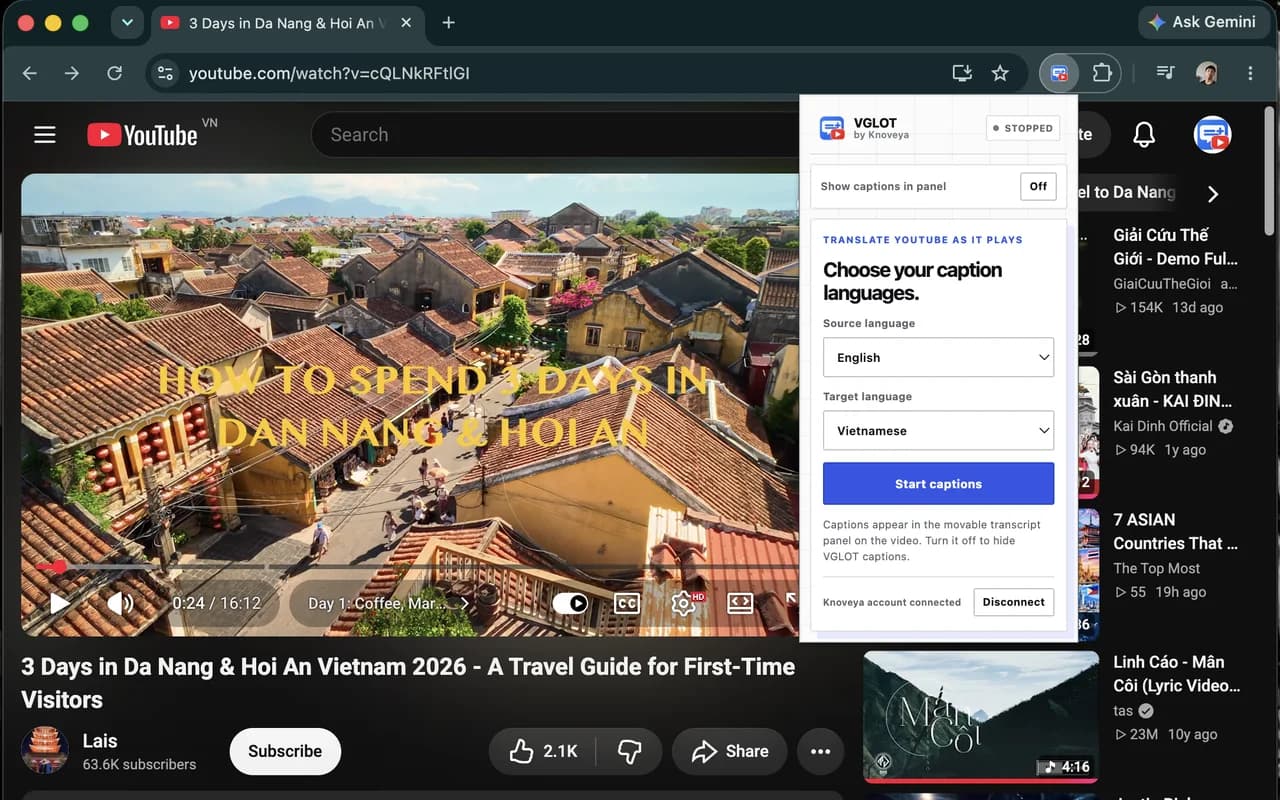
- For a supported public video with usable speech, consider VGLOT in Chrome when you need captions generated from audio. Connect your account, choose Source and Target, then press Start captions. Free to start with a monthly allowance; processing takes time.
Choose the next check from what you can see
Scroll horizontally to compare all columns on smaller screens.
| What happens | What to check | Next step |
|---|---|---|
| No CC or original caption track | Whether captions are available for this video | Check another video; consider audio-generated captions for supported public videos |
| Original captions work, translation is blank | Selected language and Auto-translate menu | Select the original track again, then retry the translation |
| Only one video fails | Another captioned video in the same browser | Report the affected video and language combination |
| Several videos fail | YouTube’s current help and your viewing session | Reload and send feedback; avoid assuming one extension will fix every failure |
Check original captions before changing translation settings
Translation needs source text. YouTube’s CC control and Subtitles/CC menu show the caption choices available for that video. First play a section with audible speech and check the original track. If nothing appears there, changing the target language does not establish that the underlying captions exist.
YouTube says automatic captions can be delayed or unavailable. Unsupported languages, poor sound, overlapping speech and long periods of silence can affect automatic captioning. These are possible causes, not a diagnosis of your particular video. As a viewer, you cannot force the creator’s caption processing to finish.
If original captions work but translated subtitles do not
Choose the original caption track again, then return to the language menu and try the translation. Test another captioned video using the same target language. This comparison gives you something specific to report: one video fails, one language fails, or several captioned videos fail.
Reloading the watch page is a reasonable retry, but it is not a guaranteed repair. Avoid clearing browser storage as a first step: it can sign you out and remove preferences. Do not grant unrelated extensions broad website permissions just to test a caption problem.
When audio-generated captions are another option
VGLOT processes the selected video’s audio to produce source text and a translation. An existing YouTube subtitle track is not required. This gives you another route for a supported public watch video whose speech is audible but whose captions are missing or unusable.
Install the Chrome extension and connect your VGLOT account with Google. Choose the spoken language and the translation language, then press Start captions. Original words may appear before the translation. Read both languages on the video or in a movable transcript panel, depending on your installed version’s settings.
VGLOT supports recorded public YouTube watch pages in Chrome. Shorts, livestreams and private videos are excluded. Processing can fail, and generated wording can contain mistakes. It does not repair YouTube’s own Auto-translate service or provide voice dubbing. Check the current Store version and release notes before relying on a display feature.
Check the allowance and data flow before starting
VGLOT requires an account and includes a monthly Free allowance shared with web usage. New caption processing uses minutes; saved captions for the same account, video and language pair can be reopened without another processing debit. New paid subscriptions are currently unavailable.
After Start, the selected video’s audio is processed on the server and captions are saved privately to your account. Temporary audio is deleted after processing. VGLOT does not record your microphone or capture browser-tab audio. Use Stop captions to prevent new requests; work already accepted may finish.
Frequently asked questions
Why is Auto-translate missing from YouTube?
Check the caption choices available for that video first. On desktop, YouTube documents Auto-translate under Settings → Subtitles/CC when your language is not listed. If the video has no usable caption track, translation options may not solve it. Compare another captioned video before deciding the issue affects every video.
Can VGLOT help when YouTube’s translated subtitles are blank?
For a supported public YouTube watch video in Chrome, VGLOT can generate captions from the audio instead of depending on an existing subtitle track. Connect your account and press Start captions to prepare them. Processing takes time, uses your monthly allowance and may fail; Shorts, livestreams and private videos are excluded.