How VGLOT’s synced captions work
Live captions recognize audio during playback. VGLOT’s current extension uses a different flow: prepare the current 60-second audio interval, then follow playback with cached bilingual captions. Live captions are not available in the current extension.
Get started
- Add VGLOT to Chrome from the Chrome Web Store. Open the extension popup and Connect with Google using your Knoveya account.
- Start Free with 30 caption minutes per UTC calendar month, shared between extension and web usage. Standard and Premium offer larger monthly allowances; no paid plan is required to start.
- Open a public YouTube watch page. Choose from 61 explicit Source options plus Auto detect and 109 Target options. Explicit Source guides recognition; Auto is limited to supported detection languages. These expanded choices apply to the extension only.
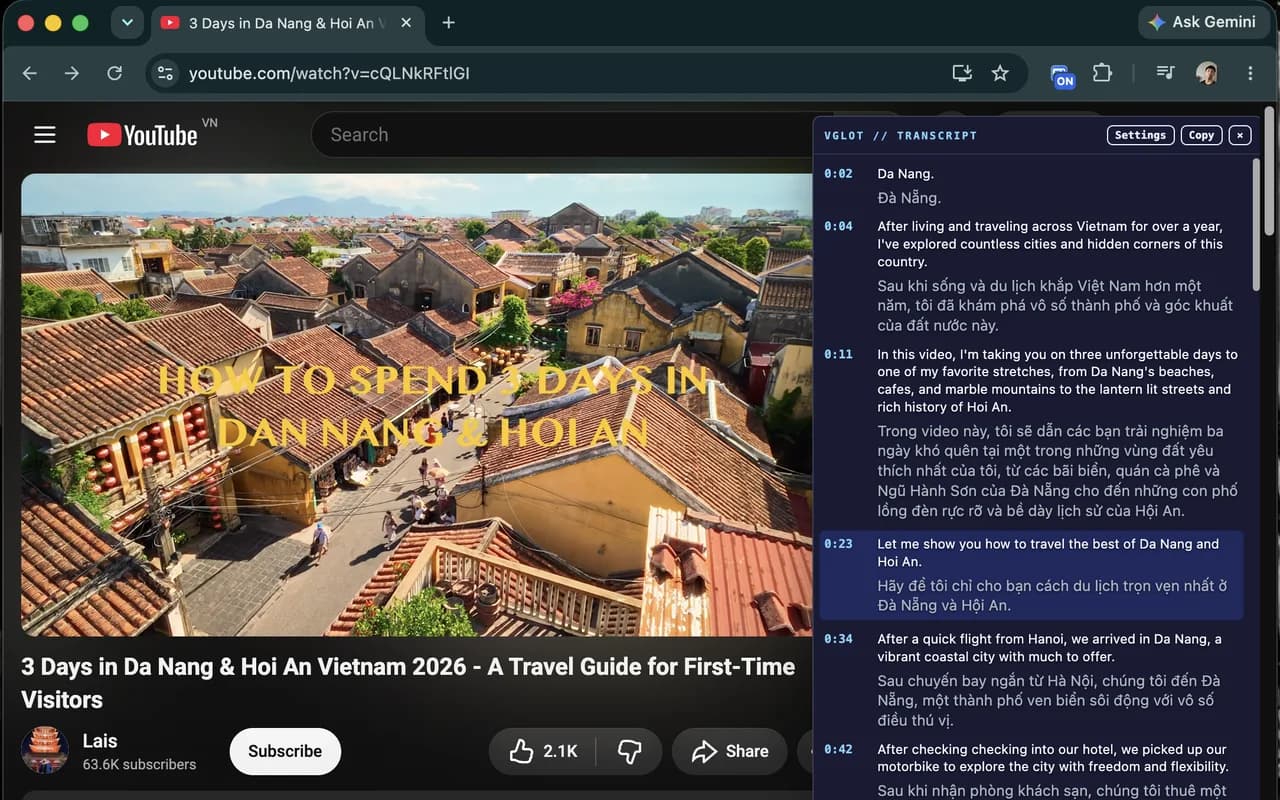
- Press Start captions at the playback position you want. VGLOT reuses ready captions for your account and exact language pair, follows accepted processing, or prepares the current 60-second interval. Wait for that interval to be ready.
- Read both languages in the synchronized panel. While playing, VGLOT may prepare one next interval. Pause stops new prefetch. Stop prevents new requests; accepted work may finish. Hiding the panel does not stop processing. Drag, resize or adjust text appearance, and click a timestamp to revisit a moment.
Live recognition is not the current VGLOT workflow
Live caption systems recognize audio as it plays and may update words or translations after a delay. That is a general distinction, not a capability offered by the current VGLOT extension.
Earlier VGLOT material described live tab-audio capture and a live fallback. Those descriptions are superseded. The current extension has no live STT, tab-audio capture or sentence-by-sentence translation mode.
Interval processing comes first
Connect with Google, choose the language pair and press Start. VGLOT reuses ready captions, follows accepted work, or prepares the current 60-second interval. Captions appear when that interval is ready; you can seek to start from another part.
Saved timestamps let the panel follow pause, seek and playback-speed changes and let you revisit a moment. This provides playback alignment and a reusable transcript, not perfect wording or instant preparation.
Account, language pairs and processing quota
Connect with Google. Free includes 30 minutes per UTC calendar month, shared with web processing. Standard includes 400 and Premium 1,000 minutes by default; legacy Plus maps to Standard.
Newly completed extension intervals count toward quota, including completed prefetch and silent intervals. Each 60-second interval costs one minute; a shorter final interval rounds up to one minute. Failed processing is refunded. Ready captions remain reusable after exhaustion, without another processing debit. The web workspace still uses whole-video processing quota.
Caption caches belong to your account and exact language pair. A ready English-to-Vietnamese pair does not automatically provide English-to-Japanese captions or make them available to another account. Auto and explicit Source choices are separate cache keys.
Waiting, failure and storage
The popup and panel show preparing, ready or silent intervals. A failed job, unavailable video, provider failure or quota limit can prevent processing. Check the error and retry when appropriate; there is no live fallback.
Stop, Disconnect, closing the tab or changing videos stops new requests. Accepted intervals may finish and be cached. Hiding the panel does not stop processing. Reopening the same video and exact language pair reuses ready intervals.
After Start, Knoveya temporarily processes public video audio with Deepgram for transcription and sends transcript text to Gemini for translation. Extension intervals are cached privately for your account, video and exact Source/Target pair. Temporary audio is deleted after processing. Extension-only intervals do not create partial Library entries; the web workspace still processes complete videos into your private Library.
The extension does not capture tab audio, use your microphone, or perform live speech recognition. Language and appearance preferences stay on your device. Review the privacy details before processing material you consider sensitive.
Use synced captions for videos worth revisiting
Start at the part of a tutorial or talk you want to follow. New completed intervals use quota, including one next interval prefetched while playing. Use ready captions whenever they meet your needs. Process the video on the web when you need a complete transcript in your Library.
Install from the Chrome Web Store and Connect with Google. Start Free or use Standard or Premium for more time. Supported pages are public YouTube watch pages in Chrome, excluding Shorts, livestreams and private videos.